Installation guide Microsoft Visio 2024 Standard 64 & 32 Bits

DOWNLOAD

Download the program with the following download link:


If you need the installer in another language or another version, click here.

This EXE file is the basis for the installation of the product.

SYSTEM REQUIREMENTS


  • 1.6 gigahertz (GHz) or faster 32-bit (x86) or 64-bit (x64) processor
  • 2 gigabyte (GB) RAM (32 bit) or 4 GB RAM (64 bit)
  • 4 GB of available hard disk space
  • Screen resolution 1280 × 768
  • DirectX 10 graphics device with WDDM 1.1 or higher driver

INSTALLATION

Before installing, please make sure any previous versions of Microsoft Office have been removed and restart your computer. You may refer to this help document from Microsoft in case you need assistance with this step.

Once the download is complete, follow these steps:

It is recommended that you complete the product installation and activation before signing in with your Microsoft account.

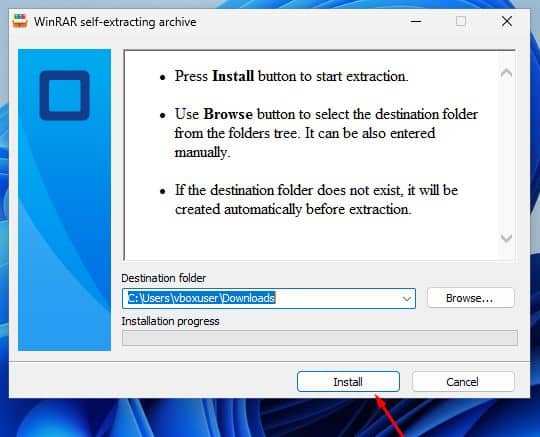
  1. Find the downloaded installer file (it will usually be located in your Downloads folder). Double-click on the file and click on the “Install” button. You will be asked if you want to let the app make changes to your device. Click on “Yes“.

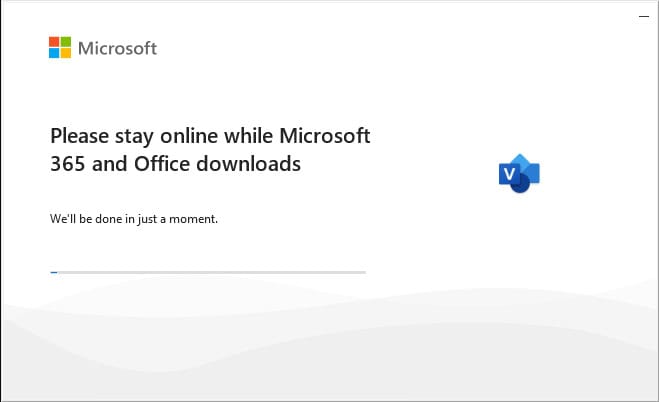
    Important: you need to be online to complete the installation, as the installer will download the needed files directly from Microsoft.
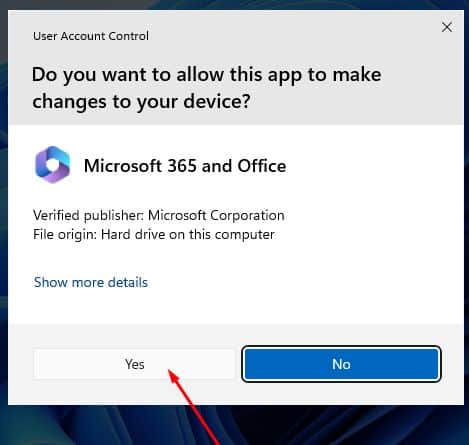
 
  1. After giving permission for the changes, your product will be installed.
 

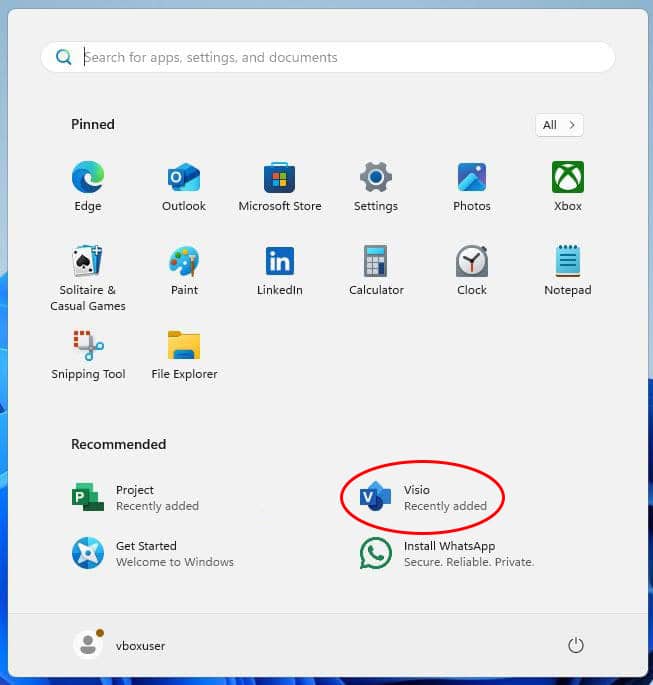
  1. Once the installation of the program is complete, open the Visio 2024 application:
    1. Click the Start button (Windows icon in the bottom-left corner).
    2. Select “All apps” to open the full list of installed applications.
    3. Scroll down to find the Microsoft Office folder or Visio 2024.
    4. You can also type the application name in the Windows search bar to find it quickly.
    5. (Optional) Right-click the app and choose “Pin to Start” or “Pin to taskbar” for faster access.
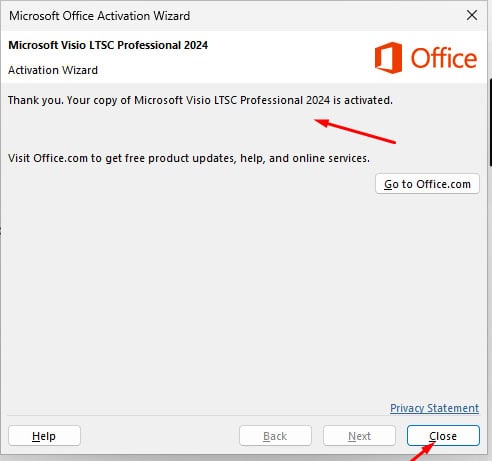
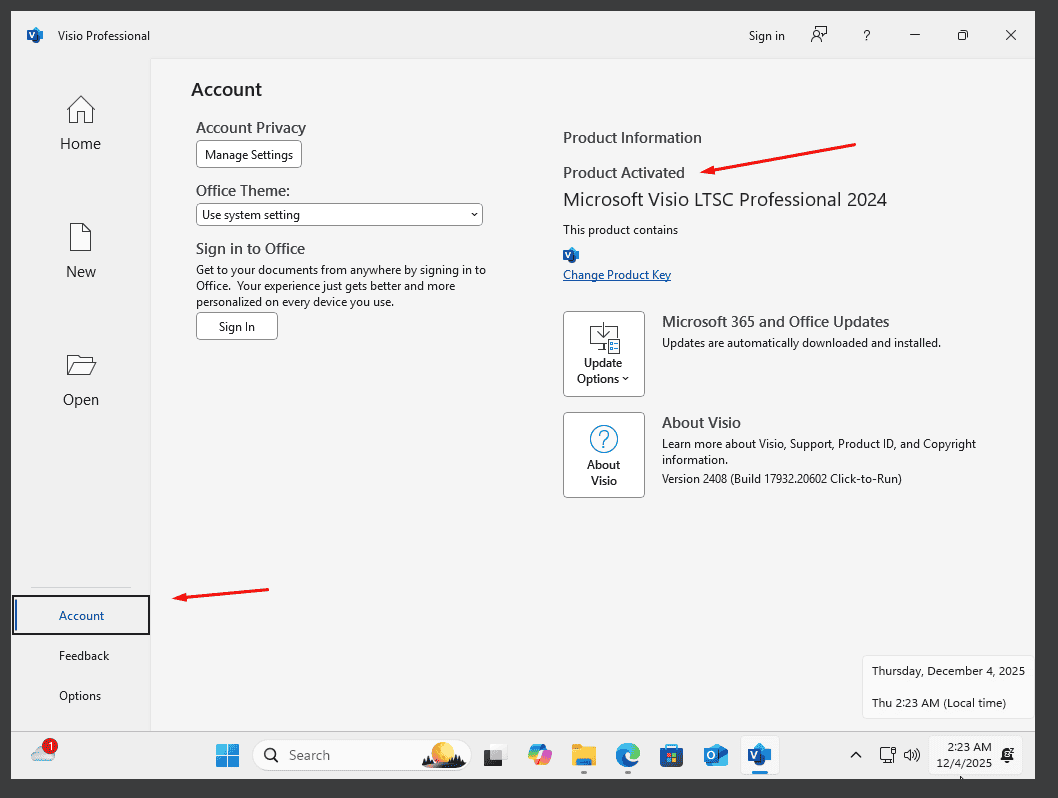
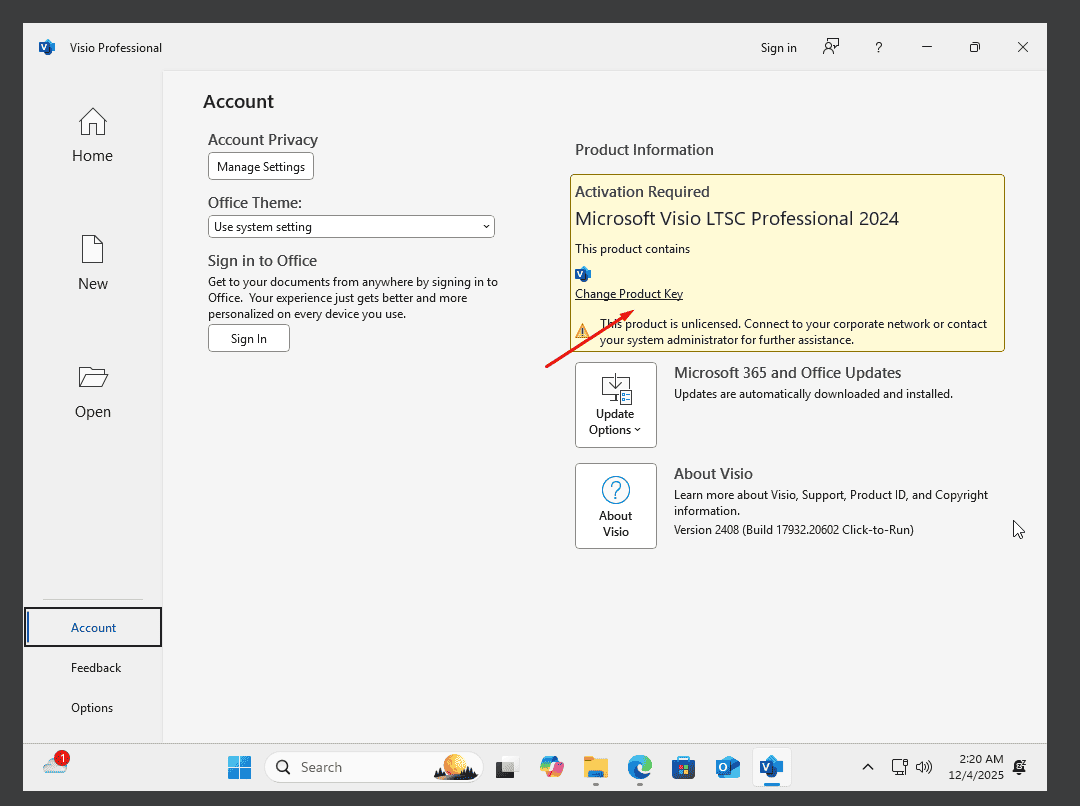
  1. Once your application is open, go to Account in the bottom left corner. Then click on Change Product Key on the right below the Office icons.
 

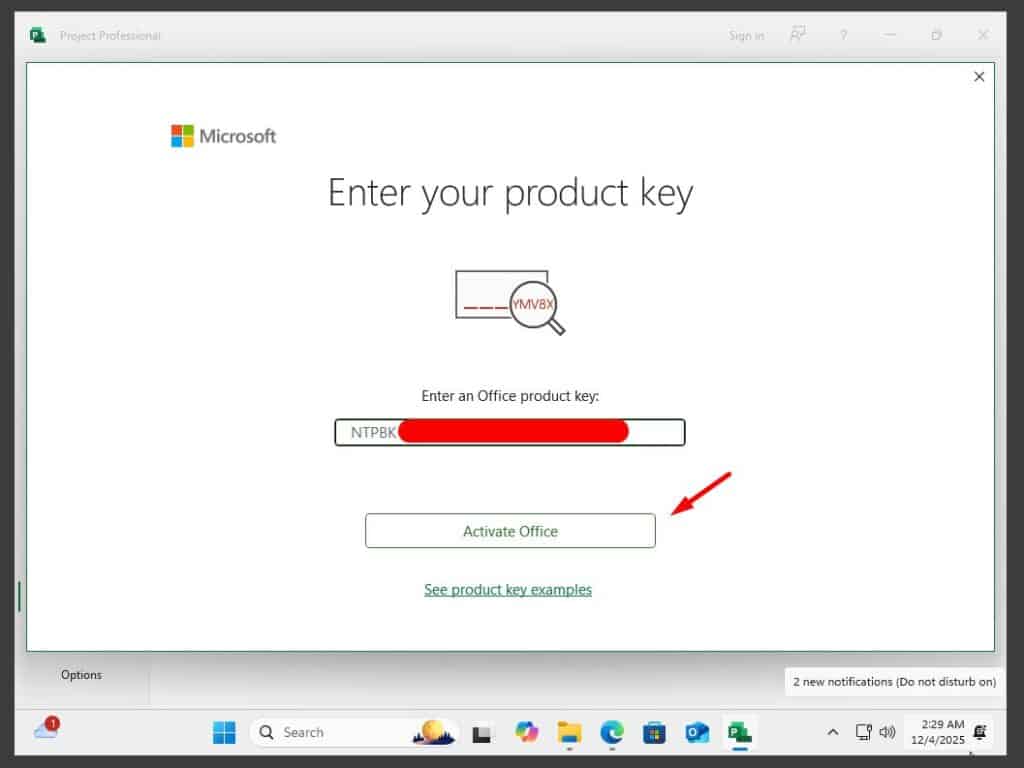
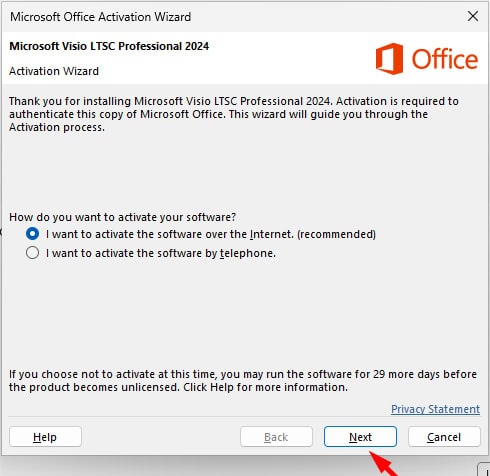
  1. Enter the activation key you received by email and follow the instructions. Your copy of Visio 2024 is now activated.
LICENSE AND ACTIVATION

Remember, the key you have purchased is a prepaid code that is not compatible with the pre-installed software. This is an original Microsoft product. Uninstall the previous version of Microsoft Office that you have on your PC and restart your computer. This is important to avoid compatibility problems.

OTHER LANGUAGES 64 & 32-BIT DOWNLOADS

Download the program with the following download link

LANGUAGE 64 BITS 32 BITS
DEUTSCH Herunterladen Herunterladen
ENGLISH Download Download
FRANÇAIS Télécharger Télécharger
ITALIANO Scarica Scarica
ESPAÑOL Download Download
DUTCH Downloaden Downloaden
FINNISH Lataa Lataa
NORWEGIAN Last Ned Last Ned
SWEDISH Download Download
DANISH Download Download

.

NOTE

Microsoft has gradually phased out support for some older products. Therefore, telephone activation is no longer possible. If you have any problems or questions during the Installation, please contact our 24/7 customer service.

For faster assistance, you can also reach us directly through our live chat, available 24/7 on our website.

Didn't find any solution?

For activations on more devices, please follow the steps in this guide on each device that you want to activate the program.

We wish you a successful installation. If you still have problems or questions about the installation, please contact our customer service at any time. We will help you as soon as possible.

en_USEnglish